Joining a Trade
The Trades you can join tab on your Profile page lets you view all trades you are eligible to join with your connected wallet.
Trades You Can Join
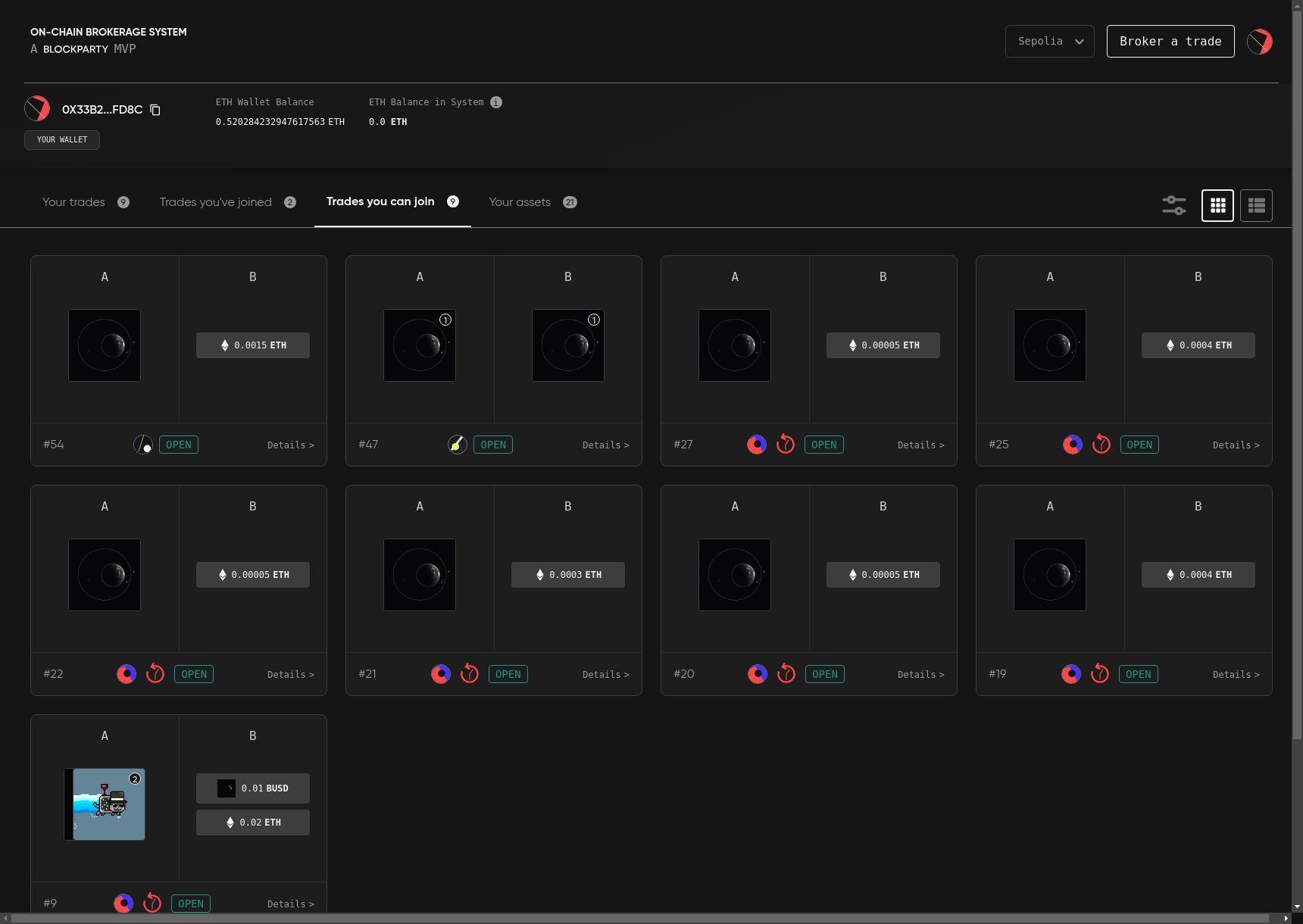
Click anywhere on a trade tile to access its Trade Details modal where you can take a closer look and opt to join the trade.
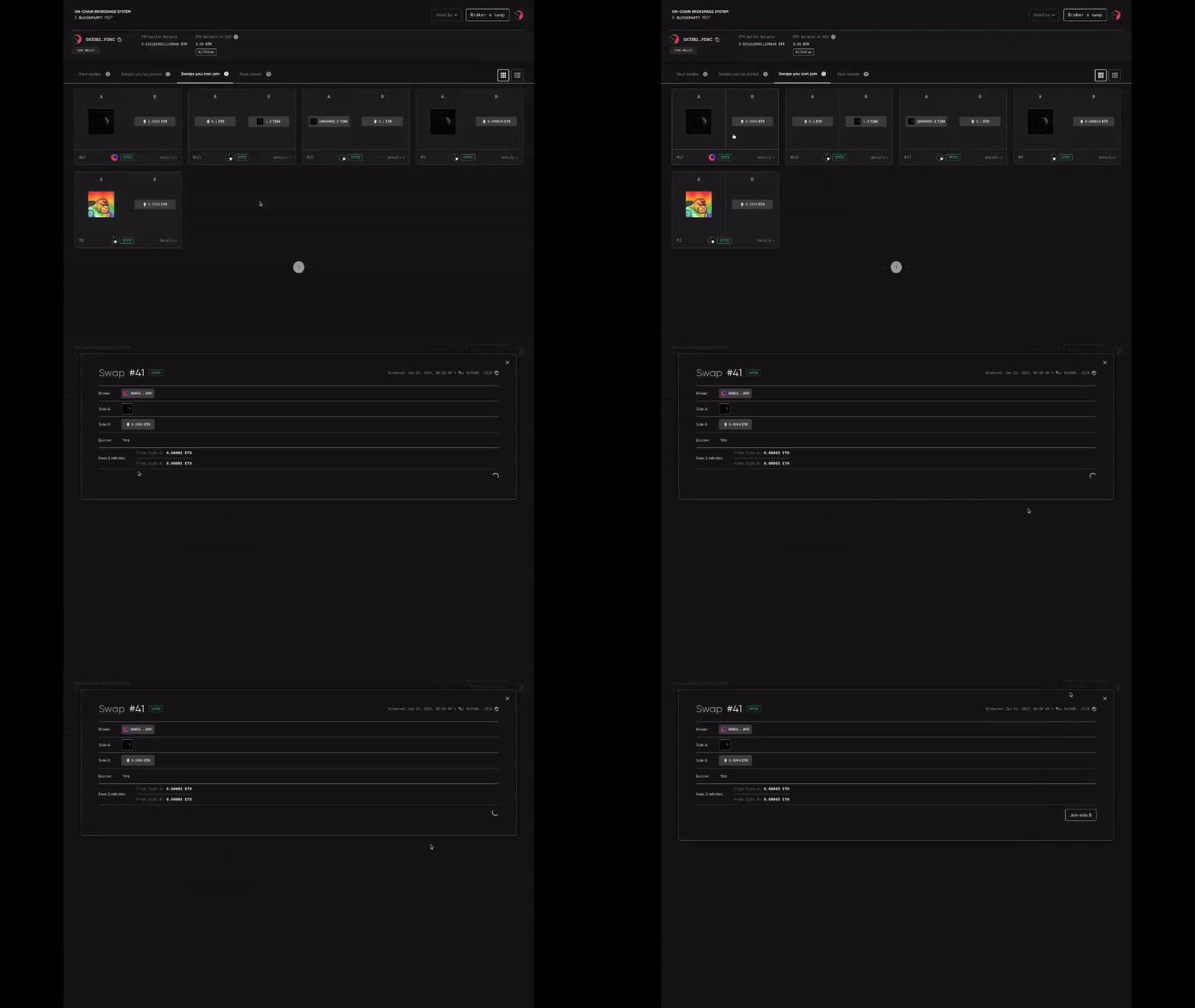
If you are eligible to join side A, you will see a Join Side A button. If you are eligible to join side B, you will see a Join Side B button. If you are eligible to join either side of a trade, you will see both buttons.
A wallet can only join one side of a trade.
To join a side of a trade, click the appropriate Join button. A 'Confirm Transactions' modal will detail all of the transactions required to join the side of the trade.
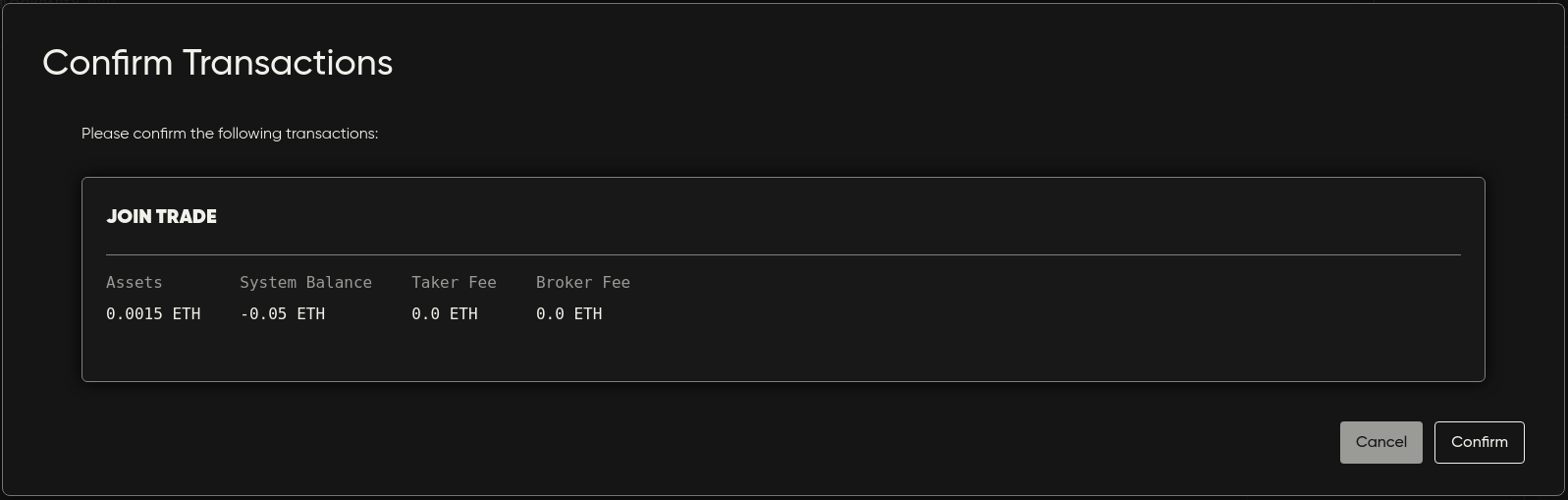
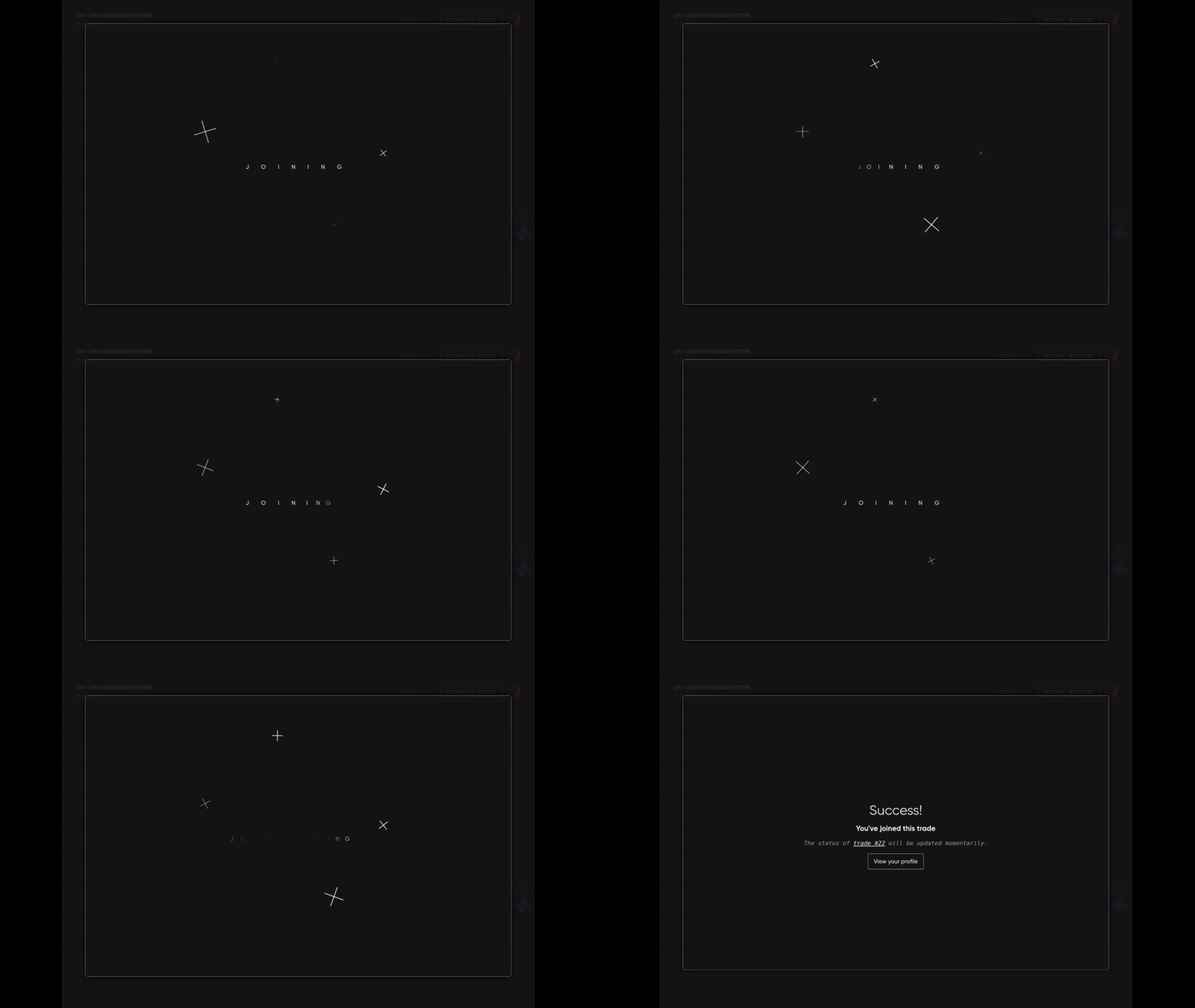
Click Confirm to proceed and sign all required transactions with your connected wallet. After all required transactions have been signed and confirmed, the application will indicate that you have successfully joined the trade and that it will soon be viewable in your wallet.
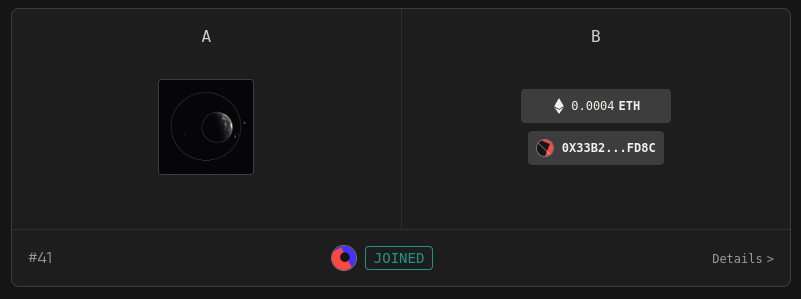
If you are the first wallet to join the trade, its trade tile will be marked as JOINED on the Trades you’ve joined tab.
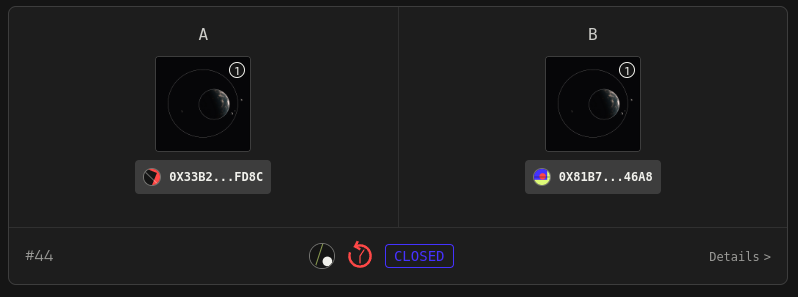
If you are the second wallet to join, its trade tile will be marked as CLOSED on the Trades you’ve joined tab and the subsequent changes to Your Assets and wallet/OBS balances will be reflected in the appropriate places on your Profile page.
Let’s take a closer look at what you should do if you’ve joined or brokered a trade and changed your mind in Canceling/Unjoining a Trade.