Profile
Your Profile page lets you view your assets, the trades you have brokered, the trades you have joined, and the trades you are eligible to join. Access your Profile via the round icon in the top right corner of the application.
Your Trades
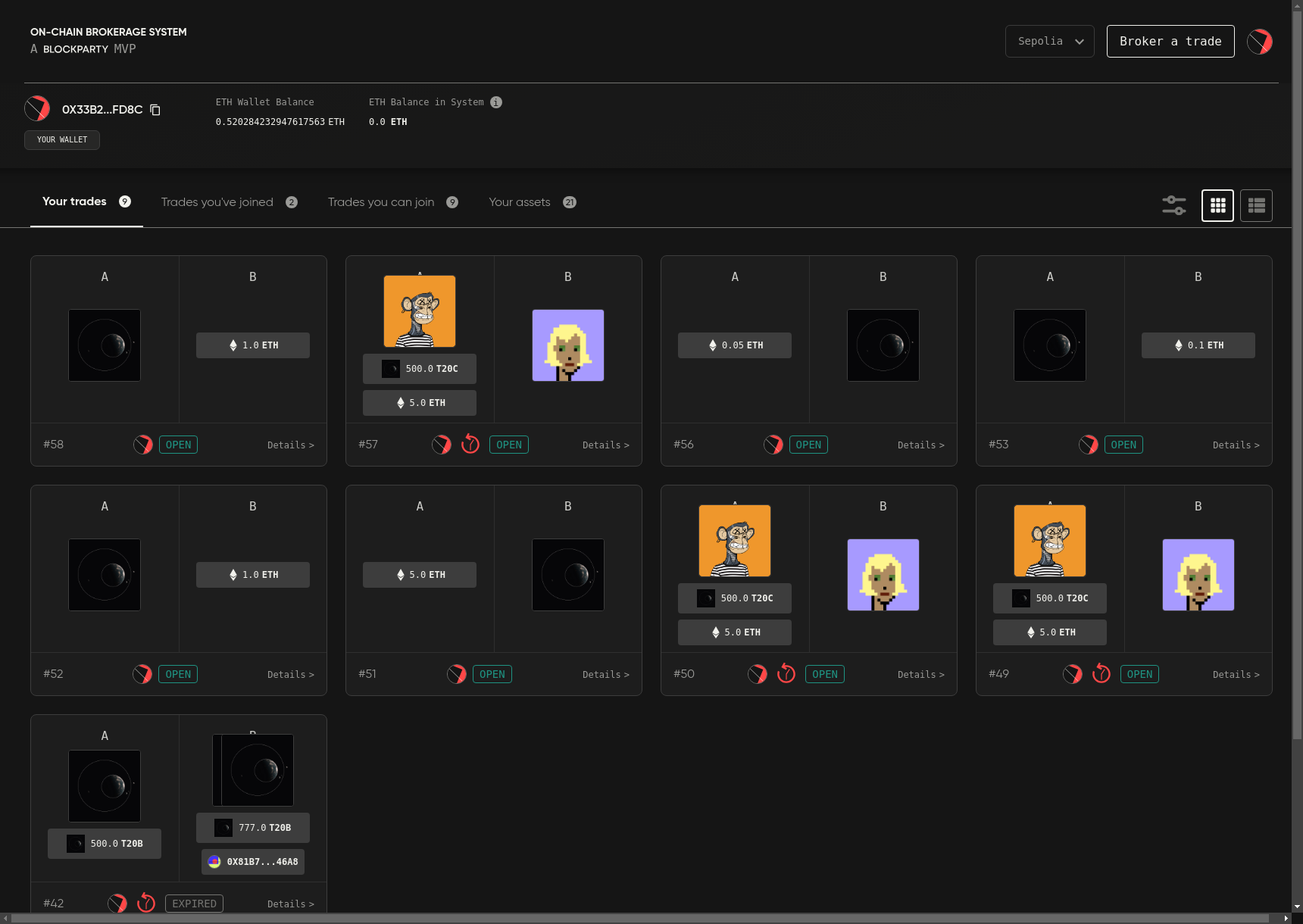
Go to the Your trades tab to view all the trades you have brokered, including the trade we brokered on the previous page. To take a closer look at a trade, click anywhere on the trade’s tile to access its Trade Details modal.
Trade Details
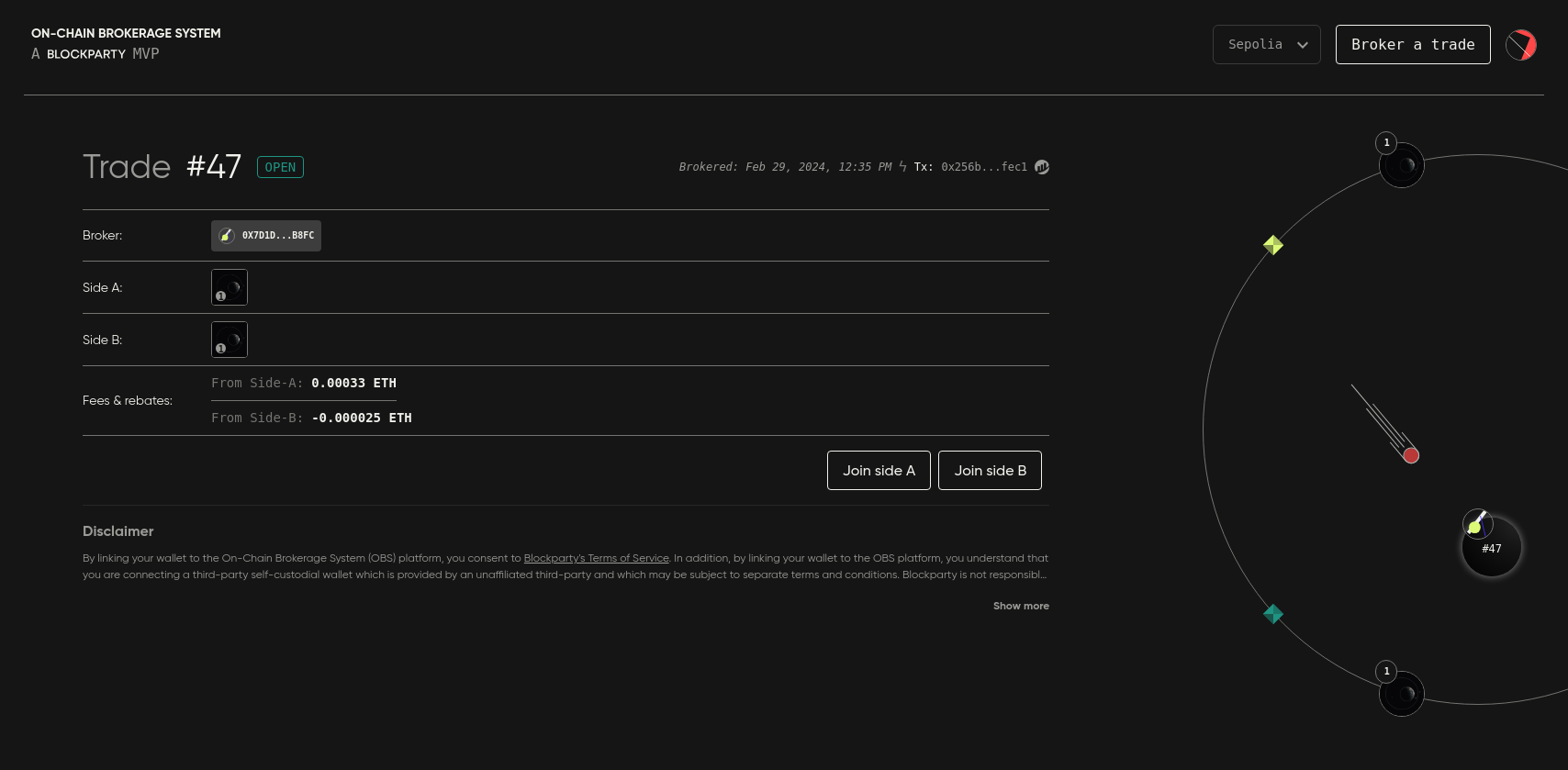
The Trade Details URL is what you, as the broker, will want to share with the owners of the assets on either side of your trade so that they may easily locate and join the trade.
This page not only serves as a detailed summary of the trade, but is also where you go to cancel, drop or join a trade.
Trades You’ve Joined
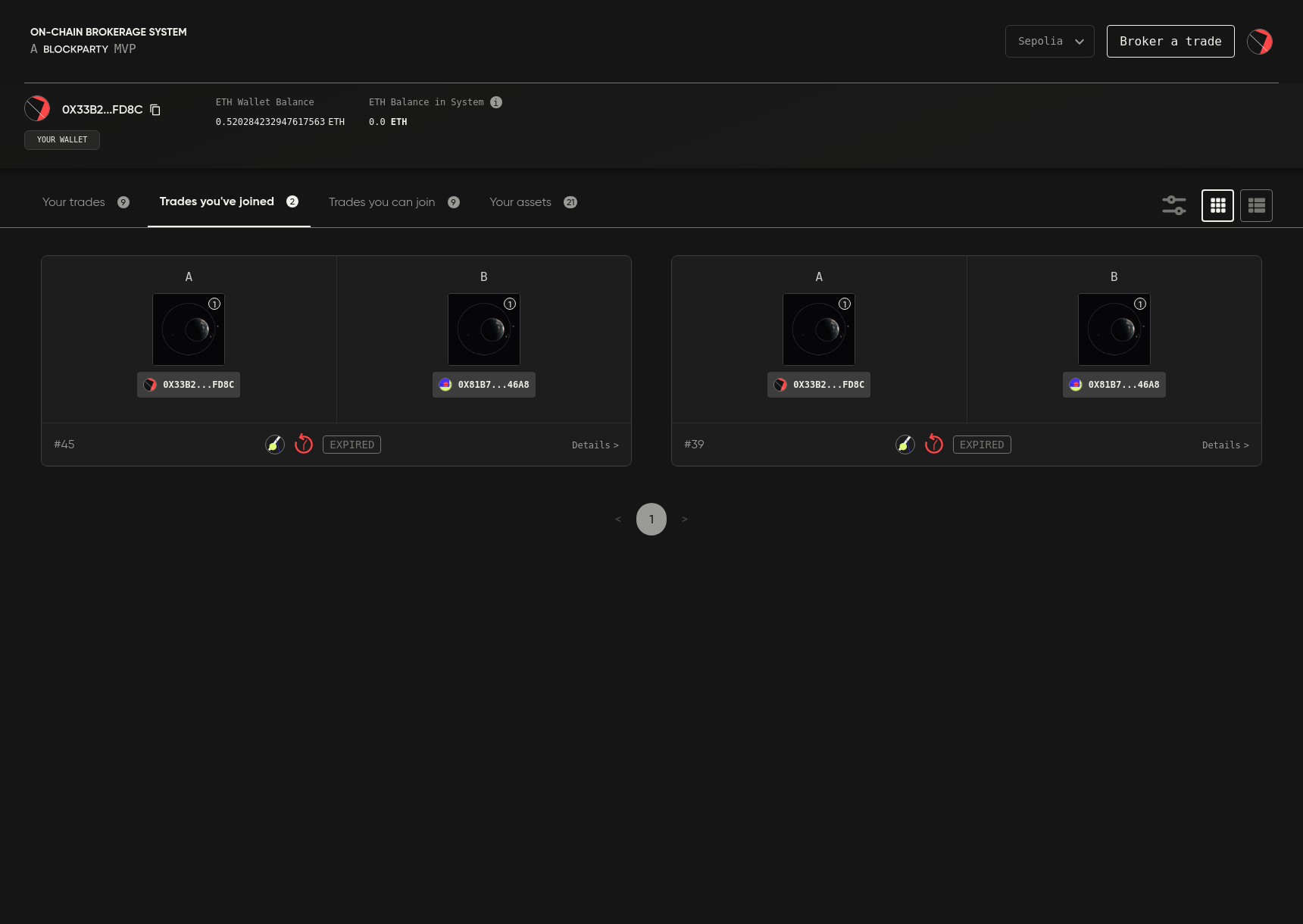
The Trades you’ve joined tab displays all of the trades you have joined and provides access to their Trade Details modals.
Trades You Can Join
The Trades you can join tab shows all open trades that you are eligible to join with the assets contained in your wallet.
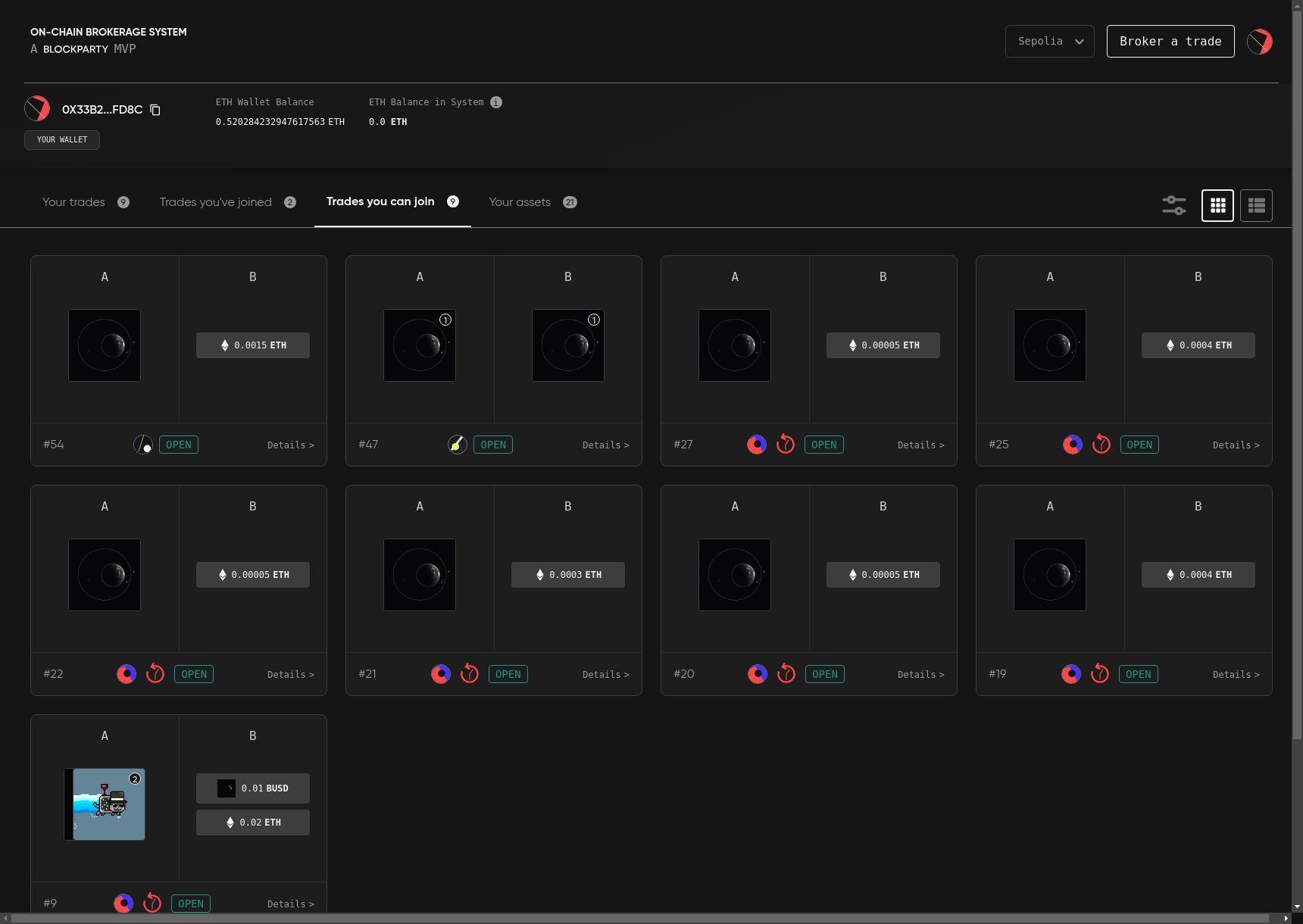
To join an open trade, click on the trade tile to access the trade’s Trade Details modal and join the trade.
Your Assets
The Your assets tab shows all of the asset types supported by OBS contained in your connected wallet.
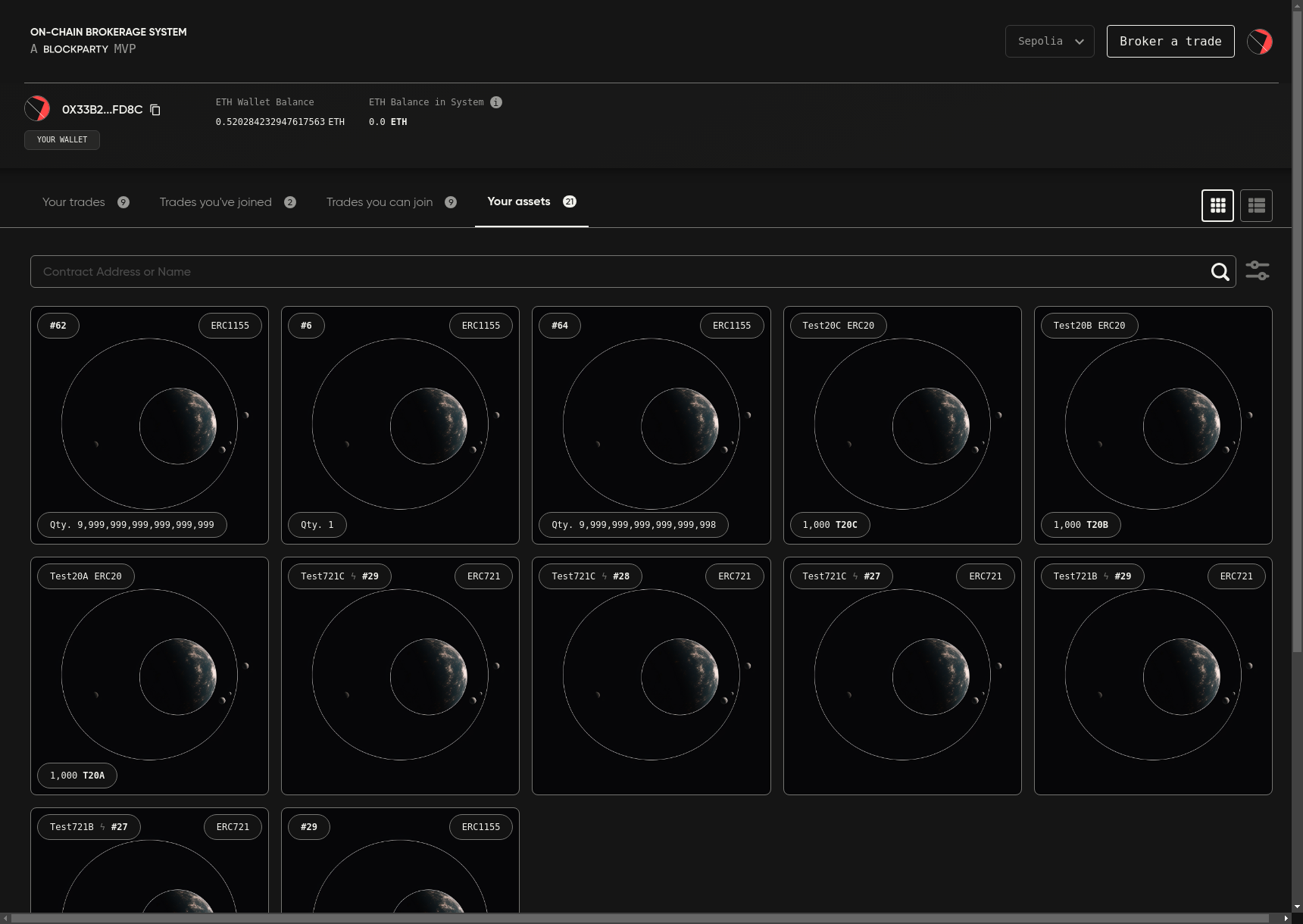
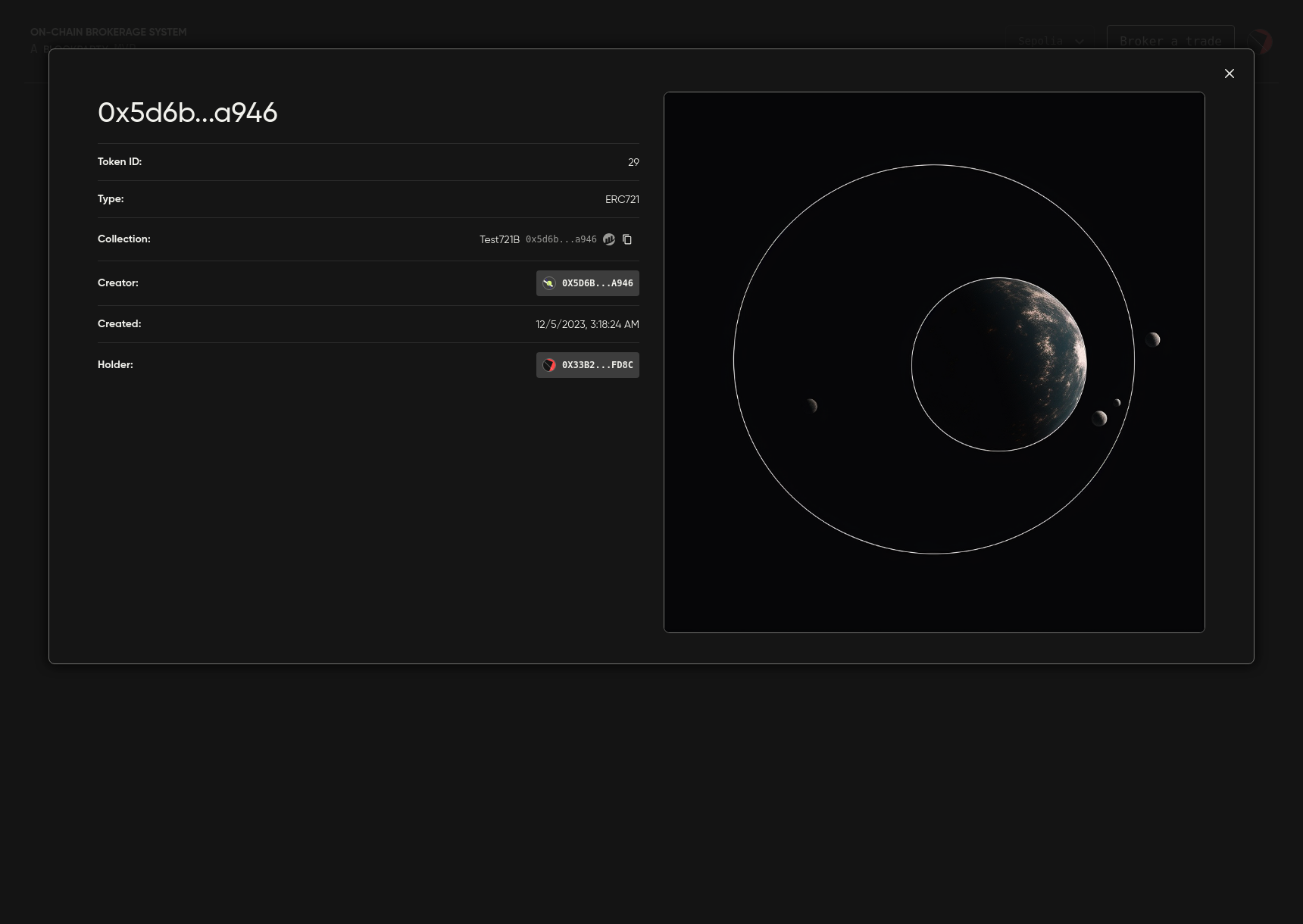
Click anywhere on an asset tile to open the Asset Details modal where you can view an asset’s contract address, creation date, and token ID as well as find a link to its Etherscan page.
Your Wallet

The Your Wallet section at the top of your Profile page has a copy button for conveniently copying your wallet address to your clipboard and displays important balance information.
ETH Wallet Balance refers to the amount of ETH held in the connected wallet.
ETH Balance in System refers to the amount of ETH the connected wallet holds on OBS. Because OBS is 100% on-chain, any ETH a wallet receives upon trade execution or upon trade cancelation needs to be manually withdrawn from the OBS contract. Any ETH value owed to the connected wallet and held by OBS is reflected in this balance and can be withdrawn at any time by clicking Withdraw.
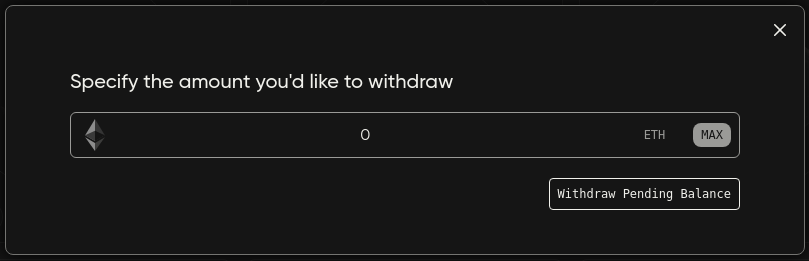
In the withdrawal modal, specify how much of your OBS balance you would like to withdraw. To withdraw your entire OBS balance, click MAX and then Withdraw Pending Balance. A wallet transaction prompt will appear and, once the transaction is signed and confirmed, the ETH amount will have been transferred to your connected wallet.
OBS will utilize ETH from your OBS balance before prompting you to send more ETH from your connected wallet to join trades and pay for fees and rebates. Frequent OBS users may wish to keep an ETH balance on OBS for this purpose. Note that OBS cannot use your ETH balance to pay the gas fees required to create, join, drop or cancel a trade.
Now that you’re fully acquainted with the Profile page, let’s take a closer look at Joining a Trade.